Table Service & Floor Designer

Design your dining room layout once, then run dine-in service from a live floor plan—start orders at the table, open checks in one click, and free tables when guests pay.

Order management Admin tools

Two tools, one dine-in workflow

Administrators use the Restaurant floor designer to build floor plans per store location—tables, bar seats, labels, and decorative elements on a visual grid. Front-of-house staff use Table service on that same layout during service: see which tables are available or occupied, start dine-in orders, open checks, send guests to checkout, and clear tables without losing order history.

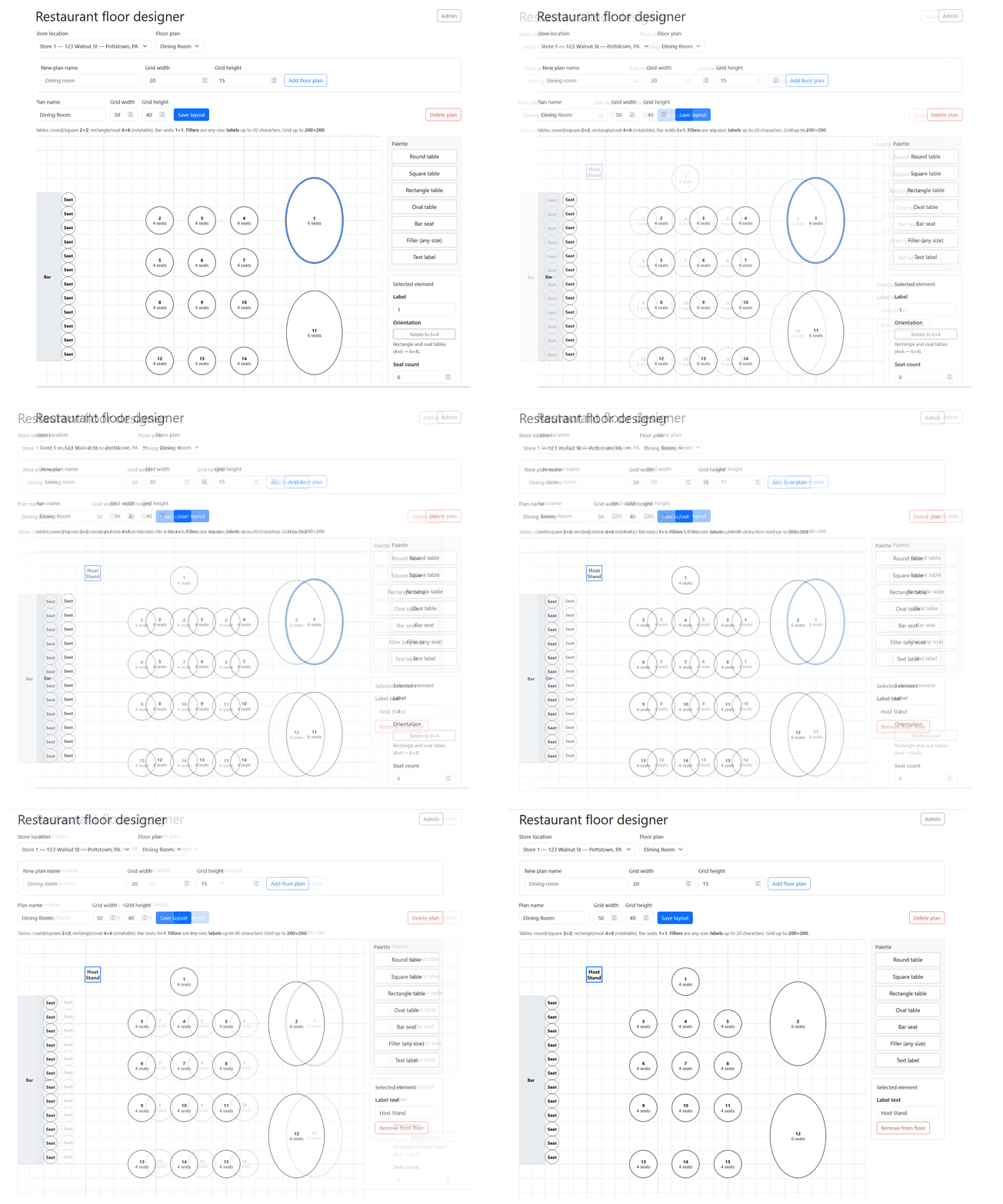
Restaurant floor designer — drag-and-drop floor layout (animated)

Restaurant floor designer — create and edit floor plans with round, square, rectangle, and oval tables, bar seats, fillers, and text labels.

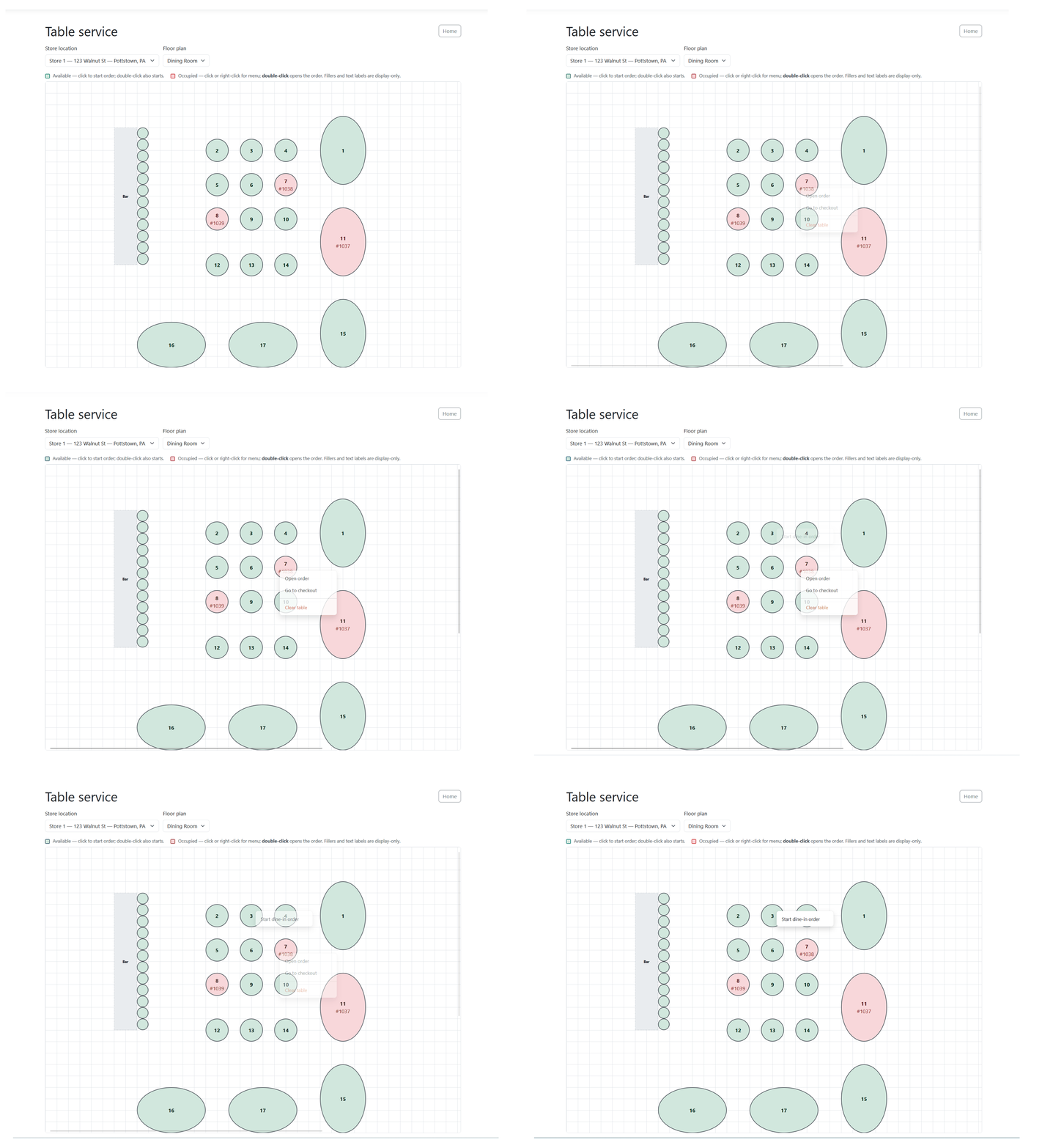
Table service floor plan — start and manage dine-in orders (animated)

Table service — operational floor view with available and occupied tables tied to live dine-in orders.

Restaurant floor designer

Admin-only layout tool for each store location. Build one or more named floor plans on a resizable grid (up to 200×200).

  • Drag tables, bar seats, fillers, and text labels from a palette onto the grid
  • Round and square tables (2×2), rectangle and oval tables (4×6, rotatable), bar seats (1×1)
  • Custom table labels or automatic numbering by position
  • Seat counts, rotation, and filler sizing with overlap validation
  • Create, rename, resize, save, and delete floor plans per location

Table service (front of house)

Staff floor view powered by the layouts you designed. Multilocation sites pick store and floor plan before service.

  • Available tables — click or double-click to start a dine-in order
  • Occupied tables — order number on the table; menu for open order, checkout, or clear table
  • Double-click an occupied table to jump straight into the order
  • Clear table releases the assignment; the order stays in the system for reporting
  • Paid orders automatically free the table at checkout

From floor plan to paid check

Table service is the dine-in entry point into the same order and checkout flow your team already uses. Starting at a table creates an open dine-in shell order and links it to that table. Adding items happens on the standard order screen; checkout uses your configured payment path. When the order is marked paid, the table assignment clears so the next party can be seated.

During service

  • Pick store location and floor plan when multilocation is enabled
  • Color-coded available vs occupied tables with seat counts and order numbers
  • Right-click or use the action menu on occupied tables
  • Fillers and floor labels are display-only—they do not take orders
  • If a table already has an open assignment, staff are sent to that order instead of creating a duplicate

Connected to the rest of POSiTURA

  • Employee login and role-based access (table service for staff, designer for admins)
  • Standard order screen for item entry and ticket management
  • Theme-aware checkout for payment and closeout
  • Works alongside new-order and order-list workflows—not a separate POS silo
  • Per-location floor plans stored with your restaurant data
Step Who What happens
DesignAdministratorBuild floor plans in Restaurant floor designer and save layout
ServiceServer / cashierOpen Table service, select location and plan, view live floor
SeatServerClick available table → dine-in order starts → order screen opens
OrderStaffAdd items on the order page; table stays occupied
PayStaffCheckout from table menu or order screen → table frees when paid
TurnStaffClear table manually if needed; order history remains for reporting